

Quick Start
The 4.3-inch touch screen shows Wi-Fi and Bluetooth status, remaining battery, serial number (tap the Mango Power logo), AC/DC load, solar and grid input, backup mode, and notifications. Icons turn from grey to yellow when the feature is active.
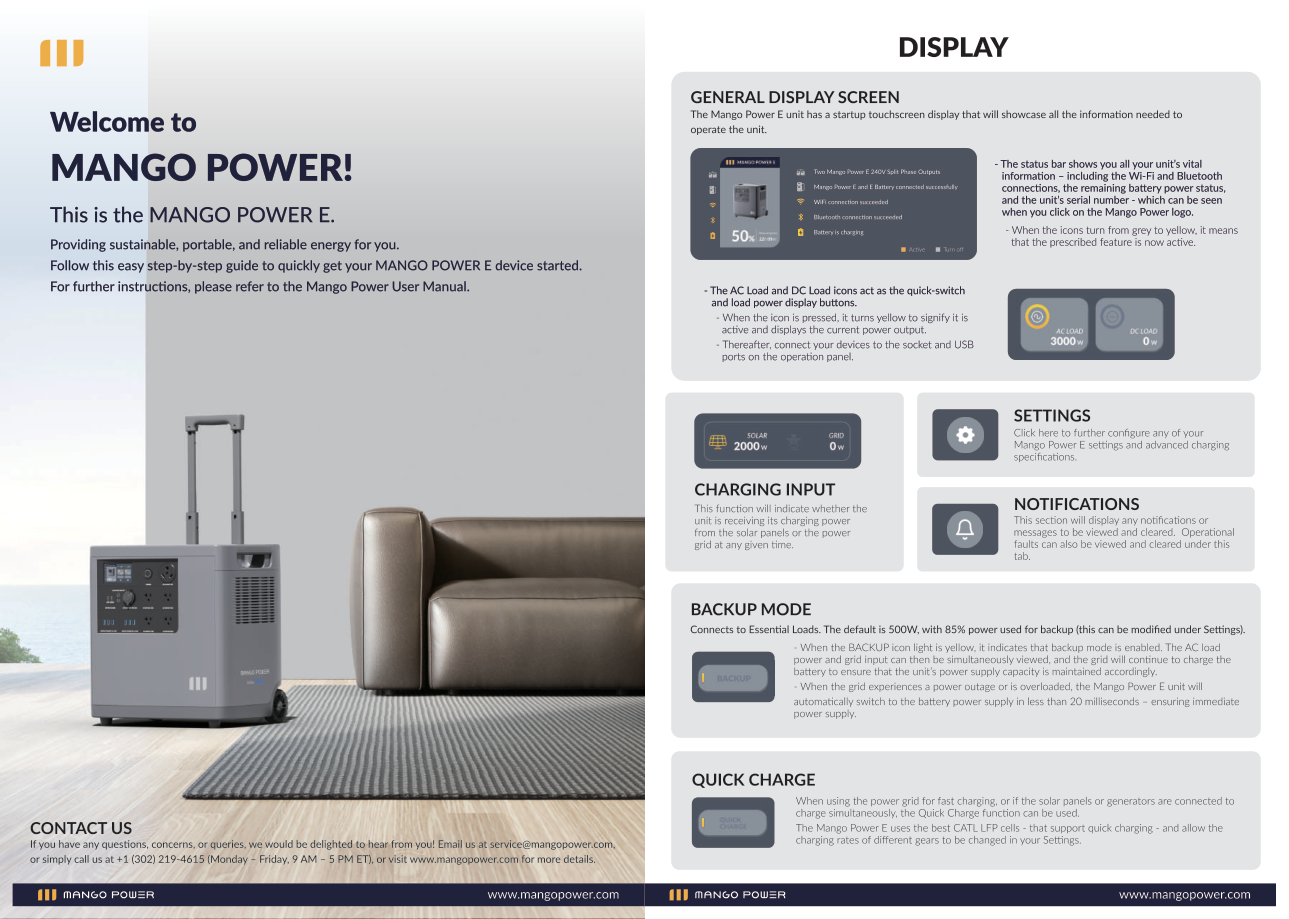
Backup mode connects essential loads. Default is 500 W, with 85% power used for backup (modifiable in Settings). When the grid is out or overloaded, the unit switches to battery in less than 20 milliseconds.
Getting started
Section titled “Getting started”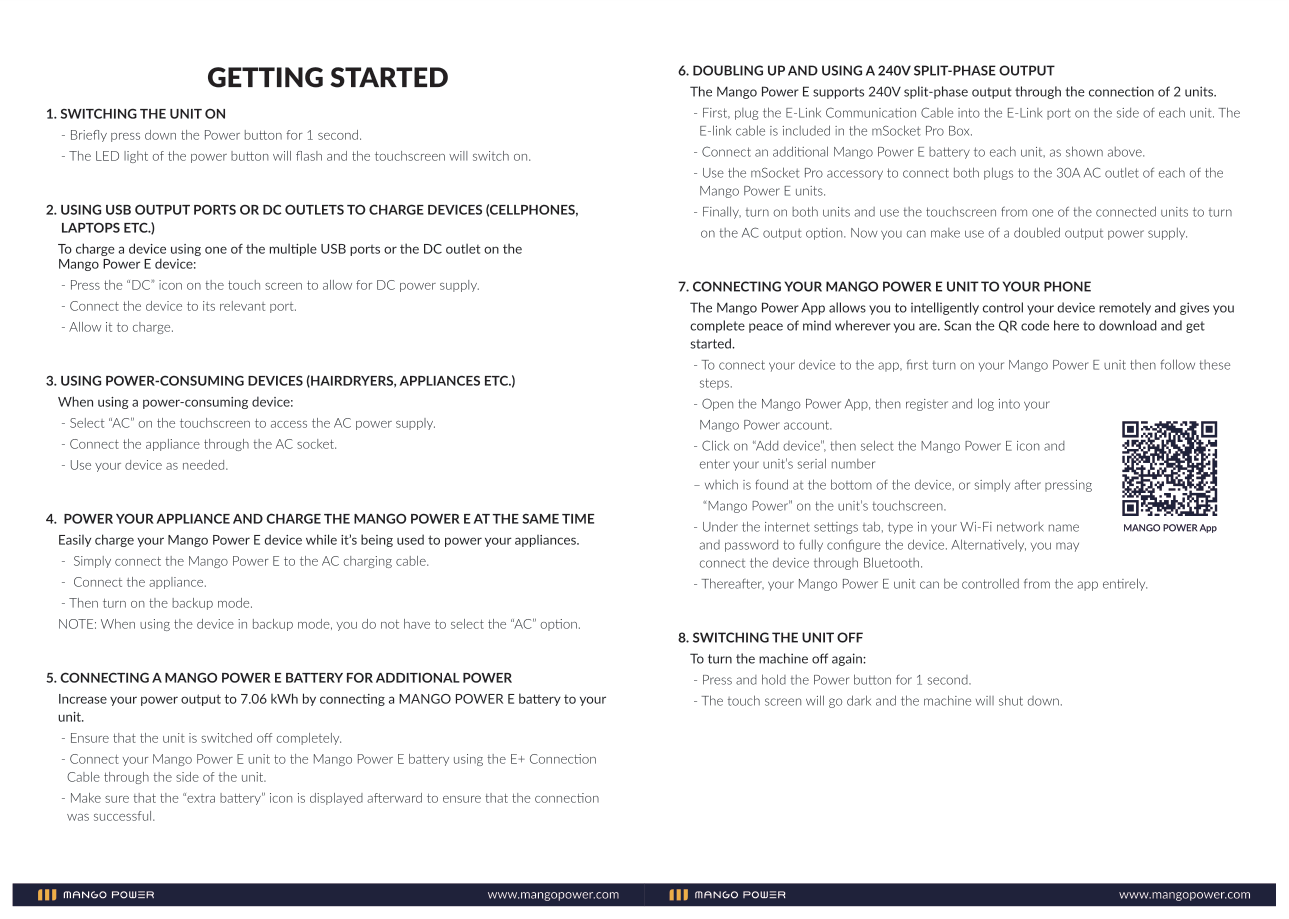
- Switch on. Press the power button for 1 second. The LED flashes and the touch screen turns on.
- USB or DC output. Tap DC on the screen, then connect the device.
- AC appliances. Tap AC, then connect through an AC socket.
- Pass-through. Connect the AC charging cable, connect the appliance, then turn on backup mode. In backup mode you do not have to tap AC.
- Expansion battery. Switch the unit off. Connect Mango Power E Battery with the E+ cable. Confirm the extra-battery icon. Capacity becomes 7.06 kWh.
- 240 V split-phase. Plug the E-Link cable (in the mSocket Pro box) into each E unit. Connect an E Battery to each unit. Use mSocket Pro on each 30 A AC outlet. Turn both units on and enable AC output from one touch screen.
- App. Open the Mango Power App, add the device, enter the serial number (bottom of the unit, or after tapping Mango Power on the screen), then set Wi-Fi or use Bluetooth.
- Switch off. Press and hold the power button for 1 second. The touch screen goes dark.
The full User Manual uses a 5-second long press to shut down. Follow the procedure that matches the document you are using.